
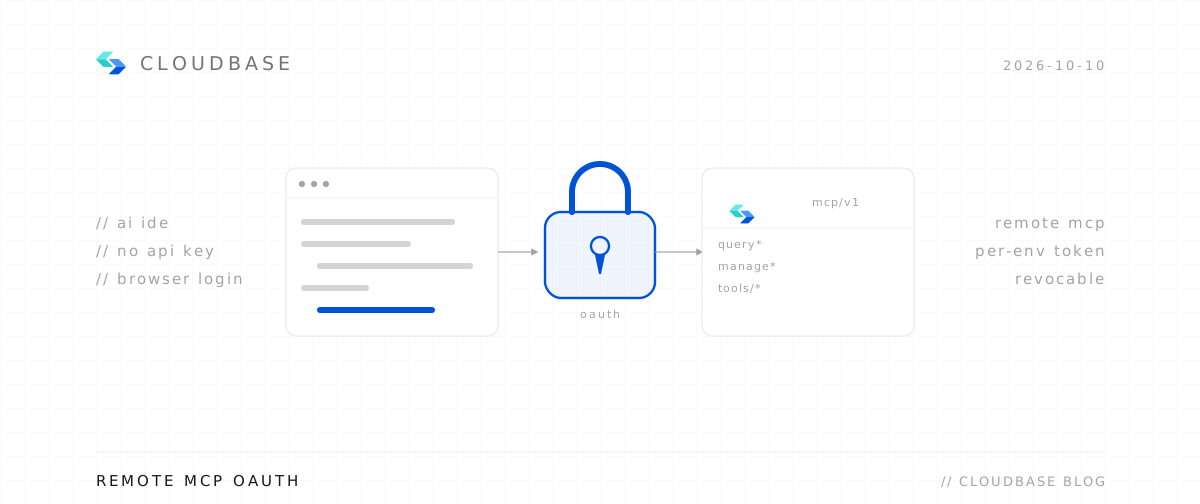
CloudBase remote MCP now supports standard OAuth 2.1 authorization. A client connects with a single URL; registration, authorization, and token exchange all happen on the client side. Platforms do not apply for access, and users type no keys.
Configure it and you are done
Add an entry to your client's MCP configuration. For the Chinese mainland site the address is https://tcb-api.cloud.tencent.com/mcp/v1:
{
  "mcpServers": {
    "cloudbase": {
      "type": "http",
      "url": "https://tcb-api.cloud.tencent.com/mcp/v1"
    }
  }
}
On first connect the client runs four steps on its own: dynamic client registration → browser login → pick an environment and approve → receive a token. Nothing else to configure.
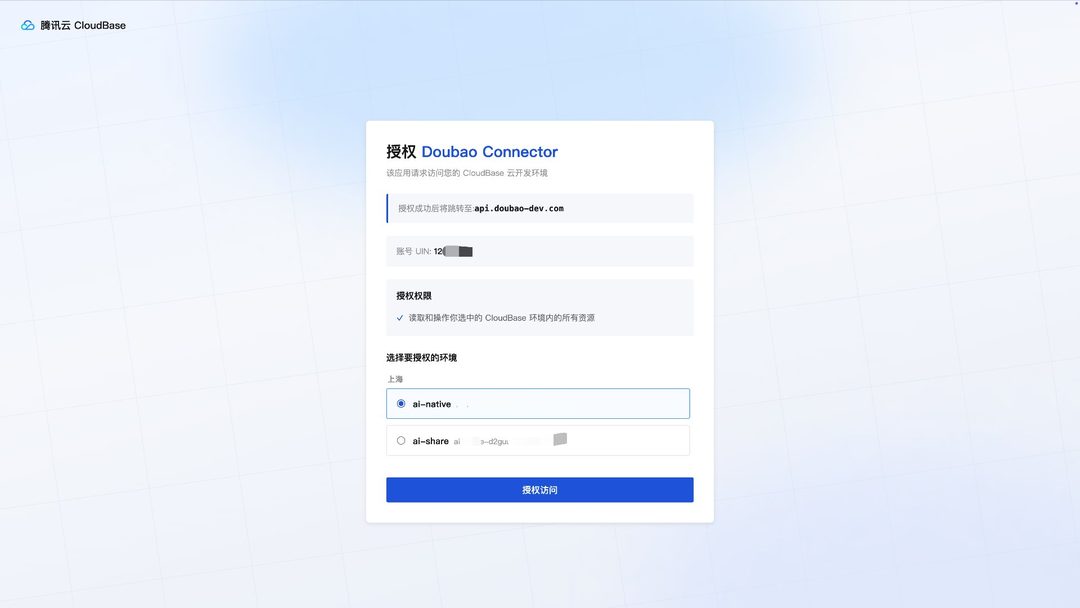
The browser opens CloudBase's authorization page, and the title names the client that is asking. A line in the middle reads "this app requests access to your CloudBase environment", and the bottom shows where you are sent back to once it succeeds. The page also shows the Tencent Cloud UIN you are signed in with, and what the grant covers: "read and operate all resources in the CloudBase environment you select".
Pick the environment to grant, then click authorize:
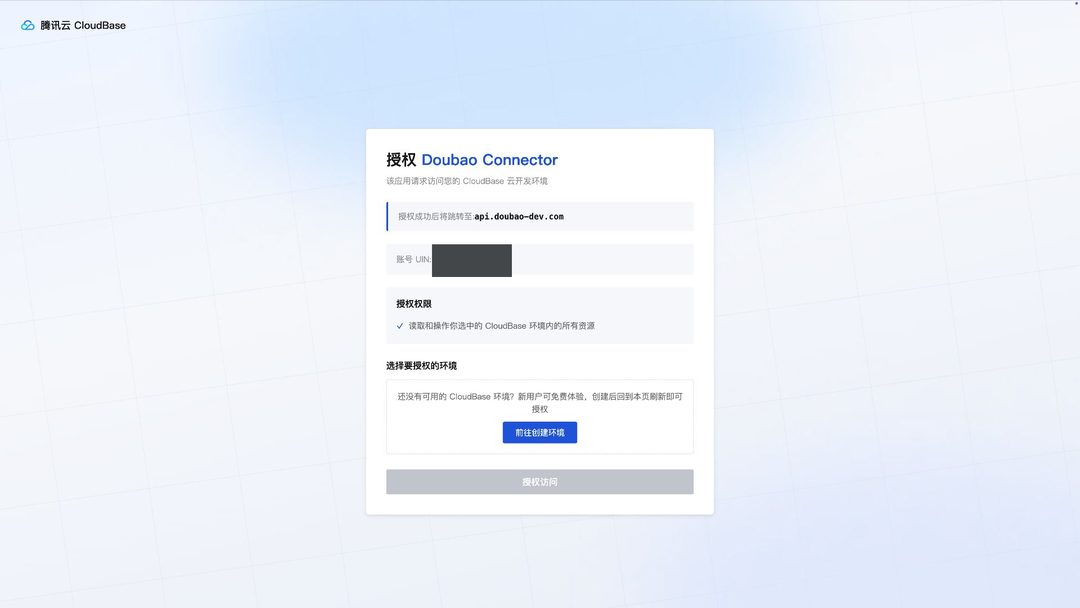
If the account has no environment yet, the page asks you to create one first. New users can open one for free; create it, come back and refresh, and it shows up for selection:
To work against another environment later, walk through authorization again and pick a different one — no configuration changes needed.
If you are building a WeChat Mini Program, choose WeChat Official Platform login when signing in to CloudBase rather than your Tencent Cloud account — what you can then select is the environment under that Mini Program account.
Config file locations and field names differ between clients (the block above is the minimal form). Pick your client for the matching config and install steps:
This client ships CloudBase built in. Setup follows its own marketplace or connectors, and the site follows your login state — nothing to pick here.
Configure your AI tool to connect with CloudBase capabilities. Supports local and remote connection. See connection modes.
Step 1: Install / Configure CloudBase
Open connector:
 Open in WorkBuddy
Use the built-in connector
1. In the WorkBuddy conversation interface, click the Connect App button at the bottom left of the input box 2. Find Tencent CloudBase in the popup, click to enter the detail page, and click Connect to enable
Once enabled, you can use CloudBase capabilities directly in the conversation.
Use the slash command
Type `/cloudbase` in a conversation to pick the CloudBase Skill, then describe what you need.
Bundled experts
WorkBuddy expert center ships four CloudBase experts; Full-Stack Engineer covers the most ground, and the other three are listed in the WorkBuddy setup guide.
Step 2: Chat with AI
Enter the following in your AI chat in order:
Read https://docs.cloudbase.net/skill.md and tell me what it can doUse CloudBase Skills: 为 CloudBase 项目创建一个完整的需求文档、技术方案和任务拆分If you want to skip even that
The fastest way is to let the AI do it. Paste this into your AI tool:
帮我把 CloudBase 接好,按下面做:
1. 打开 https://docs.cloudbase.net/skill.md,按说明完成接入。
2. 接入完成后告诉我,并建议最相关的下一步。
Clients that implement the Open Plugin Specification can also install it with one command. The supported clients are Claude Code, Cursor, Codex, Grok Build, Kimi Code, GitHub Copilot CLI, and VS Code:
npx plugins add TencentCloudBase/cloudbase-plugin -y --scope user
For the international site, swap the domain for tcb-api.tencentcloud.com. The full list is on CloudBase AI plugins.
Building your own agent
MCP client libraries already implement this authorization, so all you have to do is let users enter the URL. If you are implementing it yourself, here is what matters:
- A request to
/mcp/v1without a token returns 401, and theWWW-Authenticateheader carries aresource_metadataURL. Follow it to read the two public metadata documents and get every endpoint, with no domain hardcoded. - The authorization server metadata lives at
/.well-known/oauth-authorization-serverand declares four endpoints:/mcp/oauth2/authorize,/mcp/oauth2/token,/mcp/oauth2/register,/mcp/oauth2/revoke. - The protected resource metadata lives at
/.well-known/oauth-protected-resource, whoseresourcevalue is the MCP endpoint itself. - A public client: no
client_secret, so registration and token exchange carry no secret, and PKCE allowsS256only. - Two grant types: authorization code and refresh token. Use
refresh_tokento refresh an expired token, andrevocation_endpointto revoke one. - When a client cannot run interactive OAuth (CI/CD, say), the fallback is the paired
X-TencentCloud-SecretIdandX-TencentCloud-SecretKeyheaders plusenv_idin the URL. Those are account-level credentials covering the whole Tencent Cloud account.
The international site is identical apart from the domain.
How do the two sites differ?
- The site comes from the domain. Mainland:
https://tcb-api.cloud.tencent.com/mcp/v1. International:https://tcb-api.tencentcloud.com/mcp/v1. - The URL takes no
siteparameter, and noregionfor switching sites.regionis a tool-call argument used to query another region. - The mainland domain means the mainland site. An environment in Singapore does not change that.
- The two sites are isolated account systems with their own metadata. Switching sites means swapping the domain.
- The international site does not provide NoSQL (document database) tools.
- A token is bound to the environment the user picked. To switch, run the authorization again.
What can't you get in remote mode?
The remote server runs in the cloud, not on your machine. Tencent Cloud's MCP service enables Cloud Mode, which drops the tools that depend on a local file system or local processes.
Never registered: auth, manageStorage, downloadTemplate, manageCloudRun, deployBuild, deployPlan, deployApply.
manageApps with deployApp cannot take filePath or localPath. Use getUploadUrl for a pre-signed URL, then pass cosTimestamp after uploading. Actions in manageFunctions that upload local code, and in manageHosting that touch local files, return explicit errors.
If your client runs locally and needs these capabilities, switch to local mode:
npx @cloudbase/cloudbase-mcp@latest