
CloudBase is now listed in the official plugin marketplace of MiniMax Code. Install it in one click from Market on the desktop app, or with
mcode plugin addin the terminal. Once installed, you can call CloudBase backend resources from MiniMax Code in natural language.
Why MiniMax Code
MiniMax Code is MiniMax's AI agent product, shipped both as a desktop app and as a terminal CLI (mcode). It helps developers write code and manage projects, and extends its core capabilities through plugins.
Plugins are distributed through the official plugin marketplace, where CloudBase is now listed — install it and you can call backend cloud services from MiniMax Code right away.
After generating code with AI, developers usually still have to deploy it and wire up a database and storage. Installing the plugin inside the client removes that context switch.
Installation
Desktop app
Installation happens in the client's graphical interface. If MiniMax Code is not installed yet, set up the desktop app first.
First, open and sign in to the MiniMax Code desktop app. Second, click the Plugins icon in the left navigation bar. Third, choose the Market tab at the top of the right panel.
The Market UI is currently in English. Search for cloud in Market, or simply browse the list, and find the Tencent CloudBase card. It has an Install button on its right side.
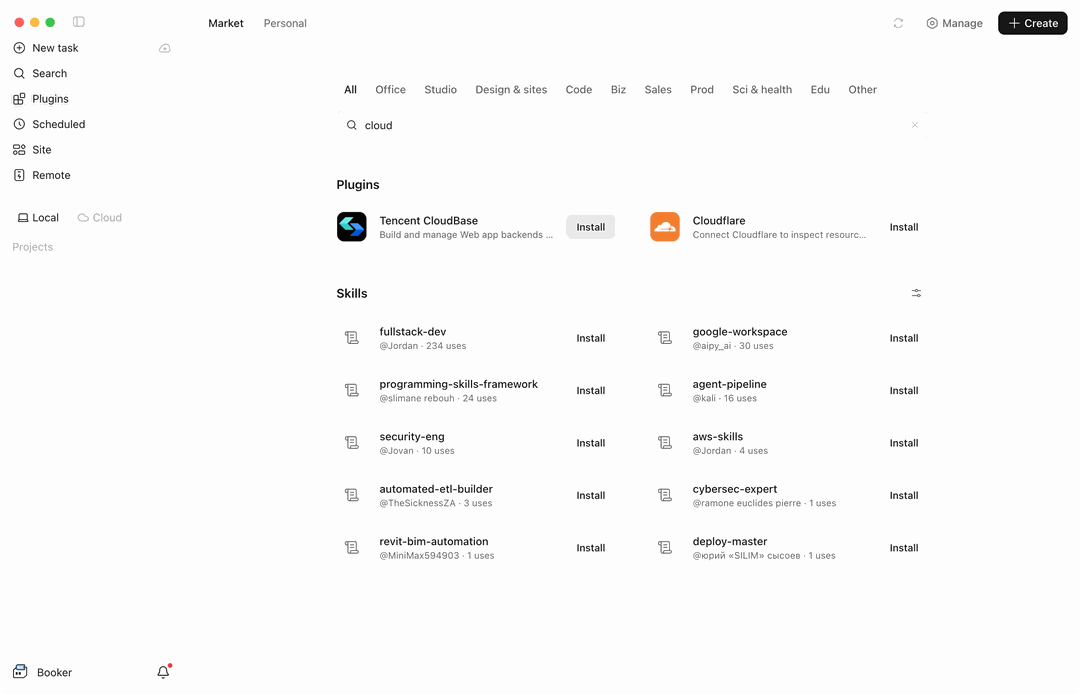
The card's subtitle is Developer Tencent CloudBase. Click Install on the right side of the card. Alternatively, click the card itself to open its details dialog and click Install at the bottom.
Then follow the client's prompts to finish connecting.
Terminal (mcode)
MiniMax Code also has a terminal form, backed by the same marketplace listing.
# Install the CLI (bundles a private Node runtime — no Node.js, no sudo)
curl -fsSL https://filecdn.minimax.chat/public/install.sh | bash

# List the plugins available in the marketplace
mcode plugin list -m official --available

# Install CloudBase
mcode plugin add cloudbase@official
The installer places mcode in ~/.minimax-code/bin and adds it to your shell PATH — reopen the terminal for it to take effect. The CLI and the desktop app share configuration under ~/.minimax/.
Other clients can use the same capabilities. Pick one for the config:
This client ships CloudBase built in. Setup follows its own marketplace or connectors, and the site follows your login state — nothing to pick here.
Configure your AI tool to connect with CloudBase capabilities. Supports local and remote connection. See connection modes.
Step 1: Install / Configure CloudBase
Install from the plugin marketplace
1. Click Plugins in the left navigation 2. Switch to the Market tab at the top 3. Search `cloud` and find the Tencent CloudBase card 4. Click Install on the right of the card
Terminal CLI
mcode plugin add cloudbase@officialThis installs the official CloudBase plugin, which carries its own MCP service (`cloudbase-mcp`) and 31 skills. It registers itself, so there is no MCP config to write by hand.
Step 2: Chat with AI
Enter the following in your AI chat in order:
Read https://docs.cloudbase.net/skill.md and tell me what it can doUse CloudBase Skills: 用 CloudBase 给我搭一套最小可用前后端 demo 项目What's inside the plugin
After a successful install, the client loads the cloud-resource capabilities the plugin carries. This is the official CloudBase plugin — the same package other clients use: one MCP server (cloudbase-mcp, defined in the plugin's bundled .mcp.json and launched locally with npx @cloudbase/cloudbase-mcp@latest) plus 31 skills. Both the MCP server and the skills are registered automatically, so you never write MCP configuration by hand.
The plugin's details dialog provides an English description, covering auth, database, cloud functions, storage, hosting, and CloudRun.