
ByteDance's AI assistant Doubao now integrates with CloudBase. Install the plugin on the desktop app or the web app and manage your cloud resources in natural language.
Why Doubao
Doubao is ByteDance's AI assistant, available as both a desktop app and a web app, and both clients can run the CloudBase plugin.
In Doubao's plugin marketplace, users can find plugins such as GitHub, Gitee, and Volcano Engine Supabase. Tencent CloudBase is now listed there as an official curated plugin, under the 研发运维 (DevOps) group, alongside GitHub, Neon, and PostgreSQL.
The plugin bundles a connector and a skill that share the same name. Once it is enabled in the Doubao client, you can manage and operate cloud resources by sending natural-language instructions in everyday conversations.
Installation
To install and enable the CloudBase plugin in Doubao:
- Open the Doubao desktop app and click 插件·技能·伙伴 (Plugins · Skills · Partners) in the left navigation bar.
- The top of the page has three tabs: Plugins, Skills, and Work partners.
- Select the 插件 (Plugins) tab and browse the default 精选 (Curated) list.
- Scroll down to the 研发运维 (DevOps) group, or search directly in the top-right area (Search plugins / Manage / + Add).
- Find the 腾讯云 CloudBase (Tencent CloudBase) card and click 安装 (Install) on its right side.
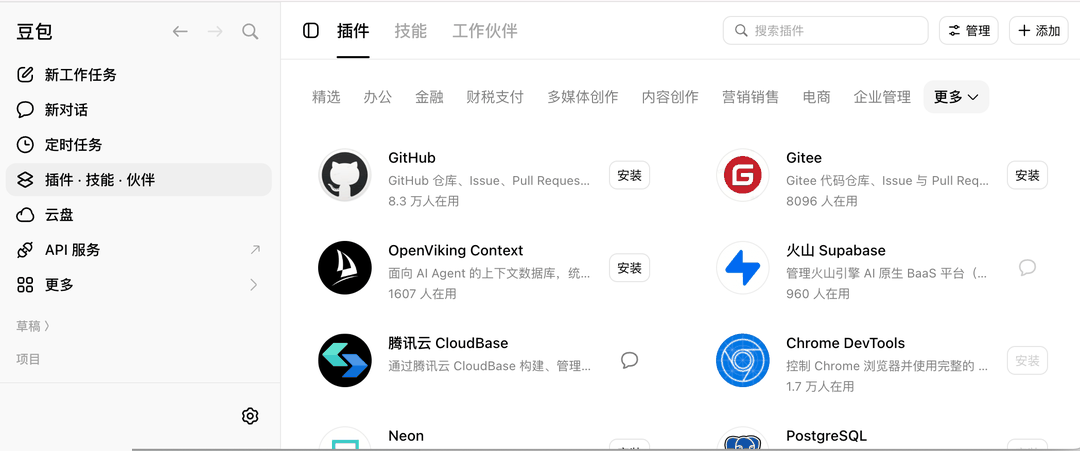
The curated page shows the Tencent CloudBase card with a one-line description: build and manage the backend of web apps on Tencent CloudBase — database, cloud functions, cloud storage, auth, and deployment.
After installation, the Manage panel shows a toggle for the plugin together with the connector and skills it contains.
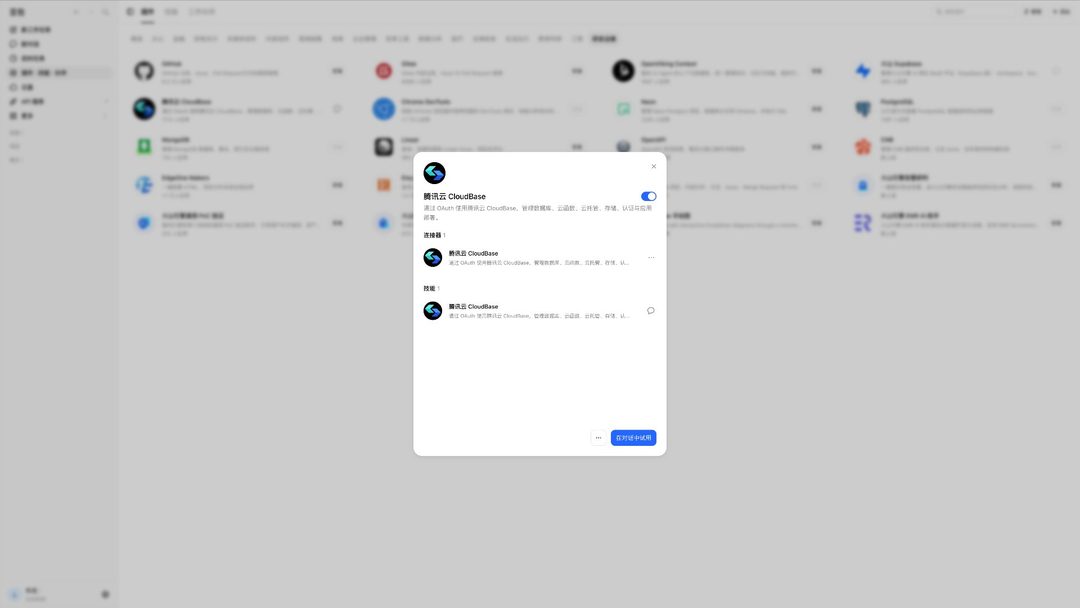
Under the hood: remote MCP with standard OAuth
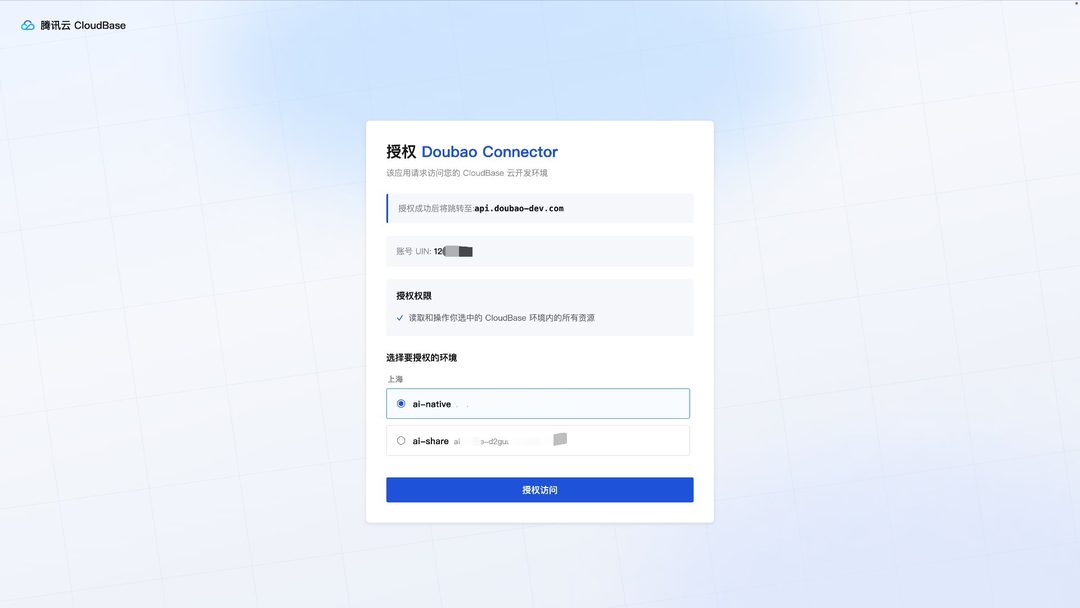
The plugin asks for no SecretId or API Key — authorization takes a few clicks in the browser. On first connection, Doubao takes you to the official Tencent CloudBase authorization page.
The page is titled "Authorize Doubao Connector". It explains that the app requests access to your CloudBase environment, and notes that you will be redirected to api.doubao-dev.com once authorization succeeds.
The page also shows the Tencent Cloud UIN you are signed in with, plus a one-line scope description: read and operate all resources in the CloudBase environment you select.
Next, pick the environment to authorize and click 授权访问 (Authorize access).
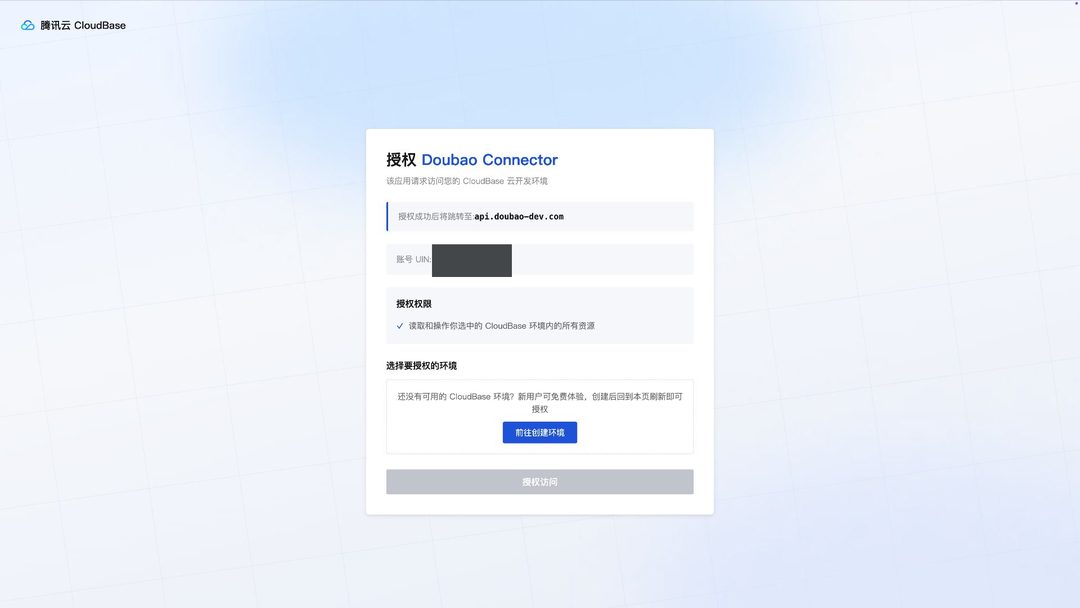
If you are new and have no environment yet, the authorization page asks you to create one first. New users can open one for free; create it, come back and refresh the page, and you can select it.
To develop against another environment later, walk through authorization again and pick a different one — no configuration changes needed.
When authorization finishes, the page redirects back to api.doubao-dev.com. No key is typed by hand at any point.
Back in the Doubao conversation, the plugin toggle is on and the connector reads as connected. Ask it to list the cloud functions in your environment and it goes and fetches them; tell it to bump every function to 512 MB and it actually makes the change, then tells you which ones moved.
Remote MCP server and dynamic client registration
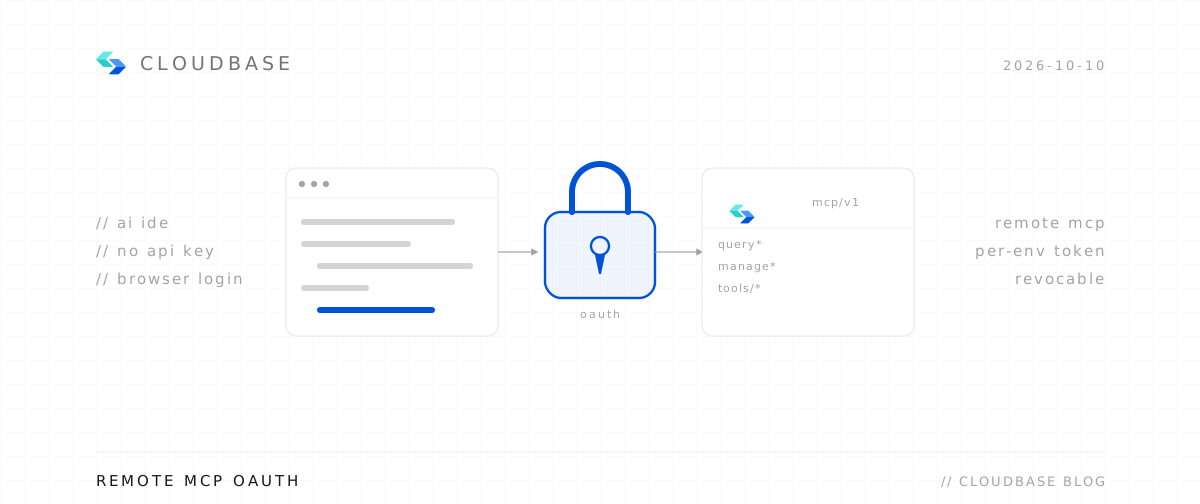
The Doubao client connects to our remote MCP server, which transports data over Streamable HTTP. For the Chinese mainland site, the endpoint is https://tcb-api.cloud.tencent.com/mcp/v1.
Authentication follows the OAuth 2.0 standard, and both public metadata endpoints are available:
- OAuth 2.0 Authorization Server Metadata (RFC 8414):
https://tcb-api.cloud.tencent.com/.well-known/oauth-authorization-server - Protected Resource Metadata (RFC 9728):
https://tcb-api.cloud.tencent.com/.well-known/oauth-protected-resource
The authorization server metadata exposes the key endpoints, such as authorization_endpoint (/mcp/oauth2/authorize), token_endpoint (/mcp/oauth2/token), and registration_endpoint (/mcp/oauth2/register).
In the protected resource metadata, resource points at the MCP endpoint above, and the supported bearer token method bearer_methods_supported is header.
Because registration_endpoint is present, clients can self-register through Dynamic Client Registration (DCR, RFC 7591). No client_id has to be requested from Tencent Cloud in advance — it is obtained at runtime, as the specification intends.
The authorization code flow also requires PKCE (RFC 7636). In the metadata, code_challenge_methods_supported is ["S256"].
grant_types_supported covers authorization_code and refresh_token, and scopes_supported is defined as mcp:full.
Two run modes are available for developers to weigh:
- Remote mode: the client gets a single URL, and the OAuth flow is started and completed by the client in the background.
- Local mode: a stdio process started with
npx @cloudbase/cloudbase-mcp@latest. Capabilities that depend on the local file system (uploading local files, downloading templates to this machine) are only available in local mode, which is also the fallback when the machine cannot reach the public internet.
Building a WeChat Mini Program
For a Mini Program the flow is identical; only the sign-in differs. When signing in to CloudBase, choose WeChat Official Platform login and use the Official Platform account your Mini Program belongs to, not your Tencent Cloud account.
What you can then select on the authorization page is the environment under that Mini Program account. Pick it, click authorize, and go back to Doubao.
The backend side can be left to the assistant: create collections, write cloud functions, upload files to storage — each is one sentence in the conversation. The Mini Program frontend still lives in WeChat DevTools; cloud functions get OPENID through wx-server-sdk, and the client calls wx.cloud directly, neither of which needs extra auth setup.
One-click setup for other clients
The same standard authorization mechanism behind this remote MCP server also works in other developer clients: the client pulls the configuration automatically and runs the same OAuth flow. Pick your client for the config and install steps:
Remote needs only a URL — your client walks you through browser authorization, so no keys land in config files.
Configure your AI tool to connect with CloudBase capabilities. Supports local and remote connection. See connection modes.
Step 1: Install / Configure CloudBase
Install in one click:
 Add to Cursor
Or manual configuration:
Or add this configuration to .cursor/mcp.json:
1{2 "mcpServers": {3 "cloudbase": {4 "type": "http",5 "url": "https://tcb-api.cloud.tencent.com/mcp/v1"6 }7 }8}Step 2: Chat with AI
Enter the following in your AI chat in order:
Read https://docs.cloudbase.net/skill.md and tell me what it can doUse CloudBase Skills: 创建一个 Node.js 后端服务,使用 CloudBase Auth 进行用户认证The international site uses the same architecture, with the endpoint https://tcb-api.tencentcloud.com/mcp/v1.
Next steps
- CloudBase AI Toolkit for developers — the runtimes the toolkit supports and a complete overview of its backend capabilities
- Connection modes — how local development mode differs from remote hosted mode, and when to use each
- GitHub repository — read the source, file feedback, or contribute