
The CloudBase plugin now supports DeepSeek Harness (DSH). Through the plugin and its MCP tools, you can create tables, upload files, configure auth, and deploy frontend and backend in a DSH session.
Why DeepSeek Harness
DSH is DeepSeek's desktop agent app, and you choose which model it runs on.
In day-to-day development there is a common pain point: a model can write full-stack code quickly, but running and deploying that code still takes several manual steps. Building a database table means signing in to a console, files have to be uploaded by hand, and frontend static assets and backend code have to be deployed manually. The moment you leave the conversation, your development rhythm breaks.
The @cloudbase/dsh-plugin package brings CloudBase backend capabilities into the DSH runtime. Models can call CloudBase database, cloud storage, and hosting APIs directly, so you can build and deploy a full-stack app inside the conversation, without switching windows.
Two installation forms
The CloudBase plugin's npm package is @cloudbase/dsh-plugin, currently at version 0.2.3. It is listed in the community plugin directory awesome-dsh-plugin, and supports DSH >=0.1.0-rc.6 <0.3.0 (verified on DSH 0.2.0-rc.2). Node.js >=18 is required.
The plugin runs in two forms: Web UI and Headless.
1. Web UI (recommended)
The Web UI form provides MCP tools and renders tool interaction cards in the chat session.
Install it with the one-line script:
curl -fsSL https://raw.githubusercontent.com/TencentCloudBase/CloudBase-AI-Toolkit/main/dsh-plugin/scripts/install.sh | bash
Or install it manually:
dsh plugin --profile web add @cloudbase/dsh-plugin
Because pnpm ≥9 blocks dependencies from running install scripts by default (which breaks the protobufjs build), a manual install needs one configuration change first — the one-line script above already includes it:
echo "enable-scripts=true" >> ~/.dsh/profiles/web/.npmrc
(cd ~/.dsh/profiles/web && pnpm install)
If the plugin card does not show up in the UI afterwards, rebuild the web frontend from the DSH install directory and restart DSH:
pnpm --dir "$(dirname "$(dirname "$(command -v dsh)")")" run build:web || true
Start it with:
dsh --profile web
2. MCP tools only (Headless)
If you do not need the frontend cards, use the Headless form. It needs no frontend build:
dsh plugin --profile headless add @cloudbase/dsh-plugin
Start it and check that the tools are loaded:
dsh --profile headless "list all mcp__cloudbase__ tools"
If you only want the MCP tools, other clients can connect to remote MCP directly. Pick one for the config:
This client ships CloudBase built in. Setup follows its own marketplace or connectors, and the site follows your login state — nothing to pick here.
Configure your AI tool to connect with CloudBase capabilities. Supports local and remote connection. See connection modes.
Step 1: Install / Configure CloudBase
One-shot script (recommended)
curl -fsSL https://raw.githubusercontent.com/TencentCloudBase/CloudBase-AI-Toolkit/main/dsh-plugin/scripts/install.sh | bashManual install (Web UI)
dsh plugin --profile web add @cloudbase/dsh-pluginMCP tools only (Headless)
dsh plugin --profile headless add @cloudbase/dsh-pluginStep 2: Chat with AI
Enter the following in your AI chat in order:
Read https://docs.cloudbase.net/skill.md and tell me what it can doUse CloudBase Skills: 帮我创建一个使用 CloudBase 关系型数据库的 Web 应用Using it after installation
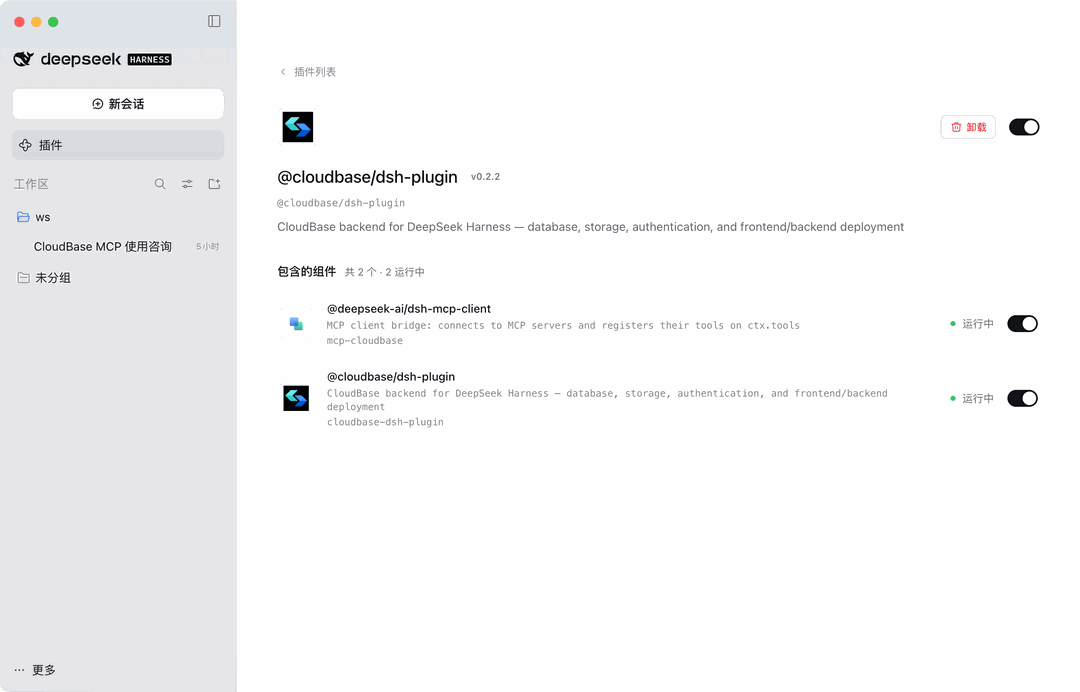
Open the Plugins page on the left of DSH and you will see @cloudbase/dsh-plugin in place, with two components listed underneath, both showing "running":
@deepseek-ai/dsh-mcp-client— DSH's bundled MCP client bridge, which connects to the MCP server and registers its tools with the model@cloudbase/dsh-plugin— the CloudBase plugin itself
The first connection to CloudBase needs a one-time sign-in (see the next section). After that, open a new session and just say what you want:
- "Create a PostgreSQL table for user profiles in this project"
- "Deploy this frontend to static hosting and give me the URL"
- "Show today's usage for the current environment"
Write operations never run silently: they come back to the session and DSH asks for approval, and the model only executes after you confirm. The toggle on the plugin page pauses the plugin at any time, and Uninstall removes it.
Device code sign-in, no API key
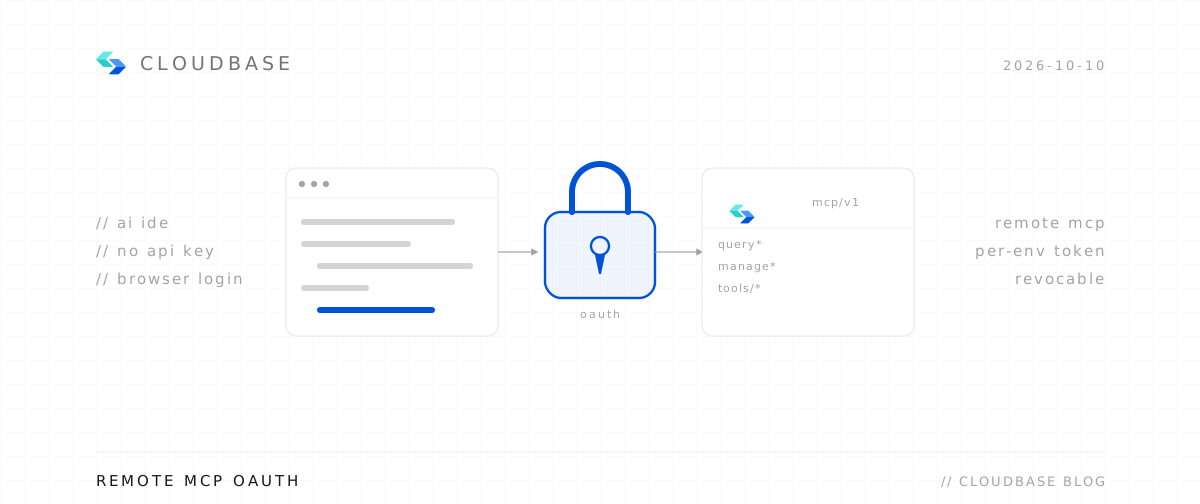
The plugin requires no CLOUDBASE_API_KEY or secret in local configuration or environment variables, which removes the risk of leaked credentials from hard-coded keys.
Instead of passing environment variables or API keys, the plugin signs in through the cloudbase-mcp device code flow:
-
Reuse the local sign-in: if you already signed in locally with
tcb login, the plugin detects and reuses that session. -
Sign in from the conversation: if there is no local session, send the DSH model this instruction:
Call
mcp__cloudbase__authwithaction=start_authandauthMode=deviceto get a verification link.Open the returned URL in a browser and authorize once; the session is then stored on your machine.
-
Switch environments: after signing in, send
mcp__cloudbase__authwithaction=set_envto pick an environment, and later tool calls use it automatically.
Note: do not configure CLOUDBASE_API_KEY. An invalid API key blocks the device code sign-in flow.
Under the hood: one plugin, one set of capabilities
Apart from two peer dependencies (cordis and react), the plugin has zero runtime dependencies. It ships one parent skill with 31 reference skills inside, and registers 38 MCP tools.
The details:
| Area | Count / identifier | Description |
|---|---|---|
| Skill architecture | 1 parent skill (cloudbase) | Bundles 31 reference skills covering the document database (NoSQL), PostgreSQL, auth, storage, cloud functions, CloudRun, web and mini program development, and operations inspection. |
| MCP tool bridge | 38 tools (mcp__cloudbase__*) | Registers tools under a unified prefix, mapping to the underlying @cloudbase/cloudbase-mcp@latest tool set (currently 2.34.8) for the model to call. |
| DataTableCard | Result table card | Renders a table when the model calls queryPgDatabase, queryMysqlDatabase, or readNoSqlDatabaseContent, with paging, sorting, JSON copy, and CSV export. |
| DeployPreviewCard | Deployment preview card | After manageHosting uploads the build output, shows the real domain and an open button in an iframe. |
| Deliverables row | Deliverable display | Shows the local path and public domain of the artifacts at the end of the session. |
Mechanics and safety
- Writes go through DSH approval: every write operation (SQL writes, uploads, deletes) is injected into the current session and only executed by the model after DSH grants explicit approval. UI cards do not bypass the permission model.
- Credentials stay on your machine: sensitive credentials live in the local CLI session or in
~/.dsh/.credentials.yaml(mode600, readable only by the current user). The plugin never uploads or leaks keys. - Reads only touch your own environment: read operations access only the CloudBase environment you bound; the plugin performs no cross-environment aggregation or analysis.
Next steps
- CloudBase-AI-Toolkit overview — the full tool set at a glance
- CloudBase plugin on GitHub — latest code and the one-line install script
- npm package page — release details for
@cloudbase/dsh-plugin